Taskbar stats
Display live system stats on Windows’s taskbar


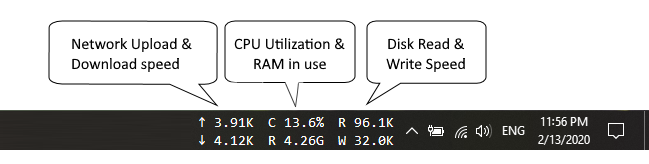
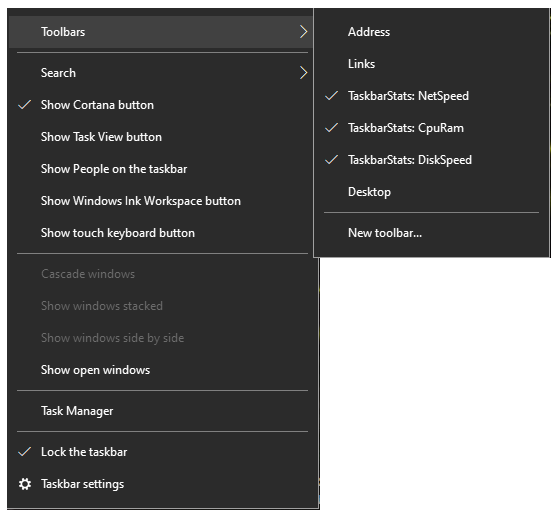
Note: At the first time install, you might have to right-click on the taskbar 2 times to show menu of TaskbarStats.
Download
Donation
Eat to live, live to code

Features
- Compact layout
- Auto choose unit to display (Byte/Kilobyte/Megabyte/…)
- Very low resource consuming
- Zero configuration/option
- Update stats every 1 second
System requirements
- Windows 10 (32-bit / 64-bit) - Native support
- Windows 11 - Supported via ExplorerPatcher (restores Windows 10 Taskbar DeskBand support)
Windows 11 Usage Instructions
Microsoft removed native DeskBand toolbar support in Windows 11. To run TaskbarStats on Windows 11:
- Install ExplorerPatcher to enable Windows 10 taskbar toolbar support.
- Install TaskbarStats.
- Right-click the taskbar -> Toolbars -> select CpuRam, NetSpeed, etc.
On macOS? Try MacStats
If you’re on a Mac, check out MacStats — a lightweight native menu bar app that brings the same live system stats to macOS:
- Displays network speed, CPU/RAM usage, and CPU temperature right in the menu bar
- Built in pure Swift with no external dependencies — minimal resource footprint
- Dynamic color coding (green → yellow → red) based on system load
- Automatic SMC sensor detection for both Intel and Apple Silicon Macs
- Configurable refresh rate, °C/°F toggle, and launch-at-login support
- Requires macOS 11.0 or later
License
This is free of charge software. You are allowed to:
- Private use
- Commercial use
- Distribution
Privacy policy: privacy-policy.md
Source code: N/A
I still consider about open source, at this moment you can access the reference code bellow.